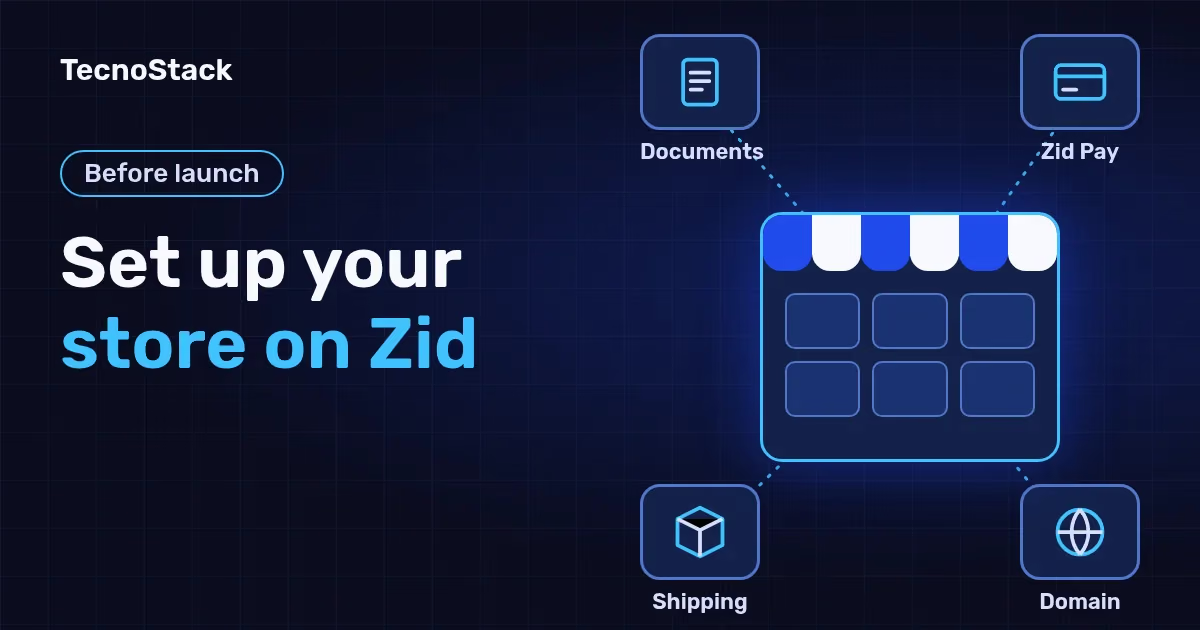
Zid store setup takes seven steps: plan the catalogue and policies, complete your business details in settings, add products with their options and weights, activate online payments with documents whose names match, configure shipping and cash on delivery, verify the store on the Business Platform using your own domain, then test real orders before the first customer arrives.
This guide assumes you have picked Zid; if not, start with how Zid compares with Salla and Shopify. We checked each step against Zid's help centre as of October 2026. Its guides are in Arabic, so the menu names below are our translations; confirm each label in your own account.
| Step | Where it happens | What you need ready |
|---|---|---|
| 1. Plan | On paper, before the dashboard | Product list, options, categories, policies |
| 2. Store details | Settings, then Store, then Store details | Business type, trade name, official documents |
| 3. Products | Products and the options library | One Excel file with names, prices, stock, weights and image links |
| 4. Online payments | Payments, then Activate online payments | Document, ID, business bank account, national address certificate, a published product |
| 5. Shipping | Logistics, then Shipping methods | Product weights, delivery cities, cash-on-delivery rules |
| 6. Business Platform verification | The Business Platform, then Zid's domain settings | Your own domain, a bank account linked to the document, policy pages |
| 7. Test and launch | The storefront itself | One real order per payment method and per carrier |
Plan the catalogue, payments, shipping and policies on paper first. Every later screen asks for one of these decisions, and changing them after the import means editing products one at a time.
- Products and options. How many products you launch with, and which options each one has: size, colour or volume.
- Categories. The groups a shopper browses, named in the words they search.
- Language. Arabic only, or Arabic and English. Switching on English in Zid translates nothing: Zid's language and currency guide says you write product data and store pages again in English, so budget that time from the start.
- Payments. Cards, mada and Apple Pay, instalments, bank transfer and cash on delivery.
- Shipping. The cities you deliver to, and whether you ship through carriers already connected to Zid or under your own carrier contract.
- Policies and domain. Privacy, terms, exchanges and returns, plus a domain name of your own. You need both for verification in step 6.
Store details in Zid cover the name customers see, your contact channels, your business type and its documents. Zid's store details guide for Saudi merchants places them under the settings icon, then Store, then Store details, as of October 2026.
- Choose the business type: individual, establishment, company or charity. What Zid asks for changes with each.
- Attach the official documents: up to five JPG or PNG files, each no larger than 8 MB.
- If the manager is not the owner, add the owner's name, national ID number and contact details.
- Your email, phone number and commercial registration number appear at the foot of the store.
The same settings area holds the legal pages: privacy policy, terms and conditions, exchange and return policy, complaints and suggestions, and licences, each editable in Arabic and English. You come back to them in step 6. Our guide to writing a store privacy notice under the PDPL covers what it must tell customers about their data.
Start with the options library, import the products from one Excel file, then complete each product's weight. That order saves you opening products one by one after the import.
- Options library. Create each option once, such as colour or size, and reuse it across products, with values in Arabic and English if both languages are on. Zid's options library guide offers three display types: plain, colour, or an image of up to 2.048 MB.
- Import. From the products page, open the actions menu and choose Import products, then download the Excel template, fill it in and upload it. Zid's import guide asks you to upload images to a storage service such as Google Drive or Dropbox first and paste each image link into the images column. Delete the sample products in the template before you upload.
- Weight. Enter each product's weight in its additional details. Weight-based shipping prices depend on it, and a missing weight later shows up as a wrong shipping charge at checkout.
Zid's document list depends on your business type, and every version requires the same name across the ID, the document and the bank account. These are Zid's published requirements for online payment activation for Saudi stores as of October 2026:
| Business type | Main document | ID | Bank account | Other documents |
|---|---|---|---|---|
| Individual | Valid freelance document whose activity matches the store's products | National ID of the document holder | Business account linked to the document, in the holder's name | National address certificate |
| Establishment | Valid commercial registration with at least two months left at activation | ID of the registration's owner | Business account in the entity's name; English beneficiary name on the bank certificate | National address certificate |
| Company | Commercial registration on the same terms, plus the articles of association | IDs of all owners | Business account in the entity's name | National address certificate; investment licence for foreign companies |
If your registration's activity does not cover everything you sell, add sub-activities on the Ministry of Commerce website first. Some activities also need a licence; Zid's example is book sales, licensed by the Ministry of Media.
If you sell as an individual and have no document yet, the freelance document is issued on the Freelance Platform free of charge and needs an Absher account. Zid says review usually takes 24 to 48 hours. Pick the activity that matches your products; Zid suggests "sales management and activation" for physical products with no closer match.
You activate Zid Pay from Payments, then Activate online payments, in three steps, after publishing at least one product that matches your activity. As of October 2026, Zid's activation guide runs like this:
- Account information. Zid shows your store details; anything missing stops the request.
- Transactions and bank account. Enter your expected monthly number of payments and sales volume, then choose the account that receives deposits. Your ID must match this account.
- Networks. Choose the payment networks shown in your store, accept the terms and press activate.
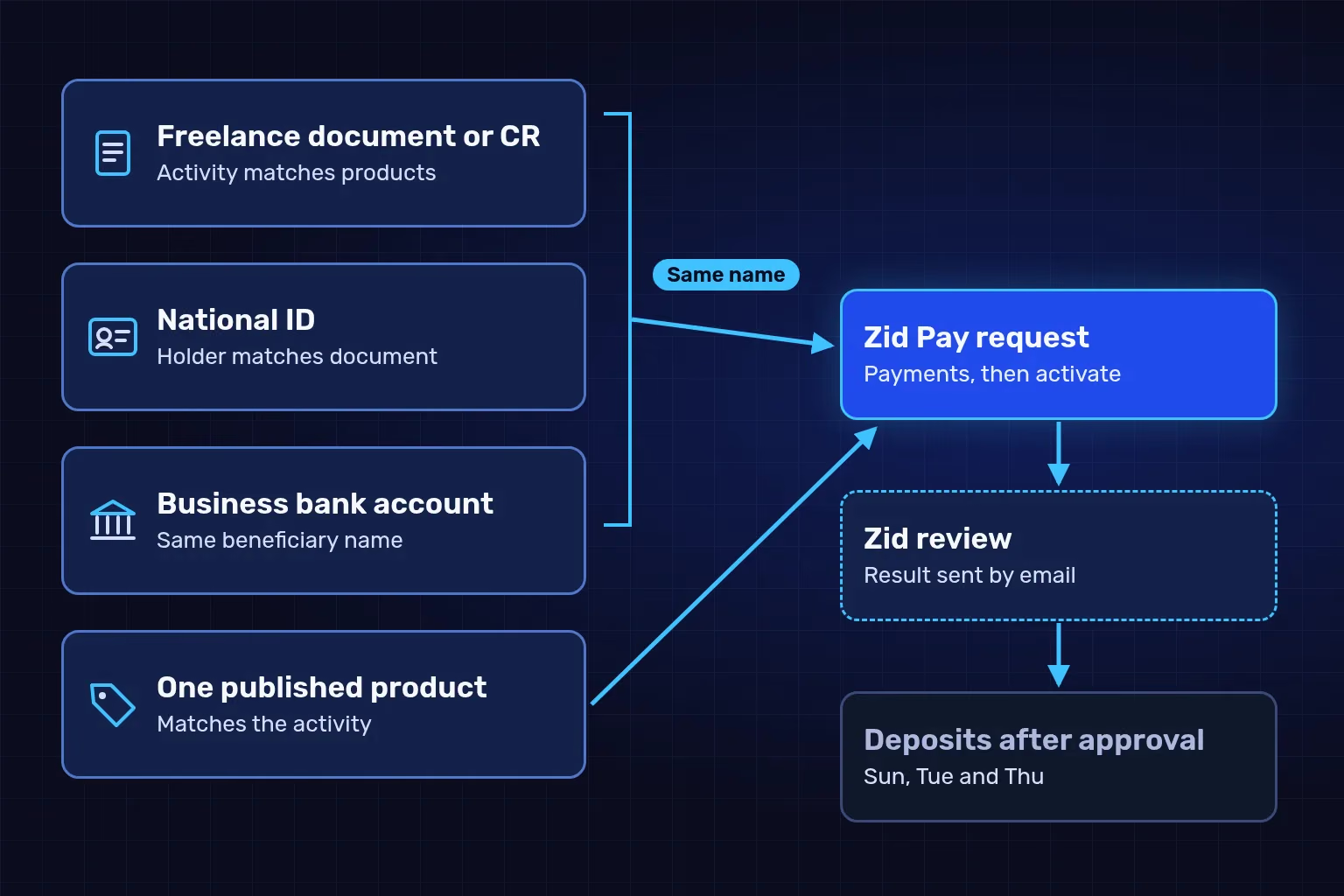
The document, ID and bank account carry one name, and one published product matches the activity: those are the inputs. The drawing shows the order of steps, not an approval issued for a real account.
Three things to know before you press activate:
- If another payment gateway is active in the store, Zid switches it off automatically when its own payments go live.
- Zid's team reviews the uploaded information and emails the outcome; if rejected, correct the details and resubmit.
- In Saudi Arabia, deposits are made on Sundays, Tuesdays and Thursdays, with a SAR 100 minimum and a SAR 3 fee per deposit, as of October 2026.
Instalments. Under Payments, then Pay later, you switch on the instalment services connected to Zid. Zid's instalments guide lists Madfu, Emkan, Tabby, MIS Pay and Tamara. For Tabby and Tamara you can request a business account from the dashboard with your freelance document number, or connect an existing account with its keys. Check each provider's fees and terms yourself; our guide to what to check in a payment provider before activation walks through them.
Zid gives you two ways to ship: direct shipping through carriers already connected to Zid with no contract, or custom shipping through your own carrier account. Either way, you set prices, cities and cash on delivery per carrier.
- Direct shipping. Under Logistics, then Shipping methods, activate the carrier you want. Zid's direct shipping guide groups services into express, standard, economy, special handling and international, and the system issues a waybill when you move an order to "ready".
- Custom shipping. If you already have a carrier contract, connect it in the custom shipping window with your account details: an API key for SMSA, for example, or the account number, account code and username for Aramex, according to Zid's custom shipping guide. Zid notes the connection can fail if the carrier has not enabled e-commerce on your account.
- Weight-based pricing. On the carrier's page, choose custom pricing: a base price for the first kilograms, then a price per additional step. This is why weights came first.
- Cash on delivery. Switch it on or off per carrier through the Customise option and choose the regions where it appears, as Zid's cash on delivery guide describes.
For finer rules, such as hiding a carrier for one product or for heavy baskets, Zid has shipping constraints with up to 11 conditions each. The guide limits them to the Growth, Professional and large-business plans, so check yours first. To compare the carriers themselves, read our Saudi carrier comparison for online stores.
Verification on the Saudi Business Center's Business Platform is a government step, separate from Zid's review of your documents. Zid requires your own domain for it, because the default store domain cannot be verified. As of October 2026, Zid's Business Platform verification guide lists these conditions among others:
- A valid commercial registration, or a valid freelance document in the store owner's name.
- A bank account linked to that same document.
- A working store link that is not a social media account such as Instagram, Snapchat or TikTok.
- Products within the activity the document allows.
- The commercial registration number and licences shown on the home page, plus a privacy policy, an exchange and refund policy, shipping and delivery details, and a clear contact method.
You sign in to the Business Platform through Nafath, select your document and add the store, contact and bank details. To prove you own the domain, choose the DNS TXT record method, copy the verification code, add it as a new TXT record in the store link settings inside Zid, then return to the Business Platform to finish. The guide notes that the root-file method is not currently supported on Zid.
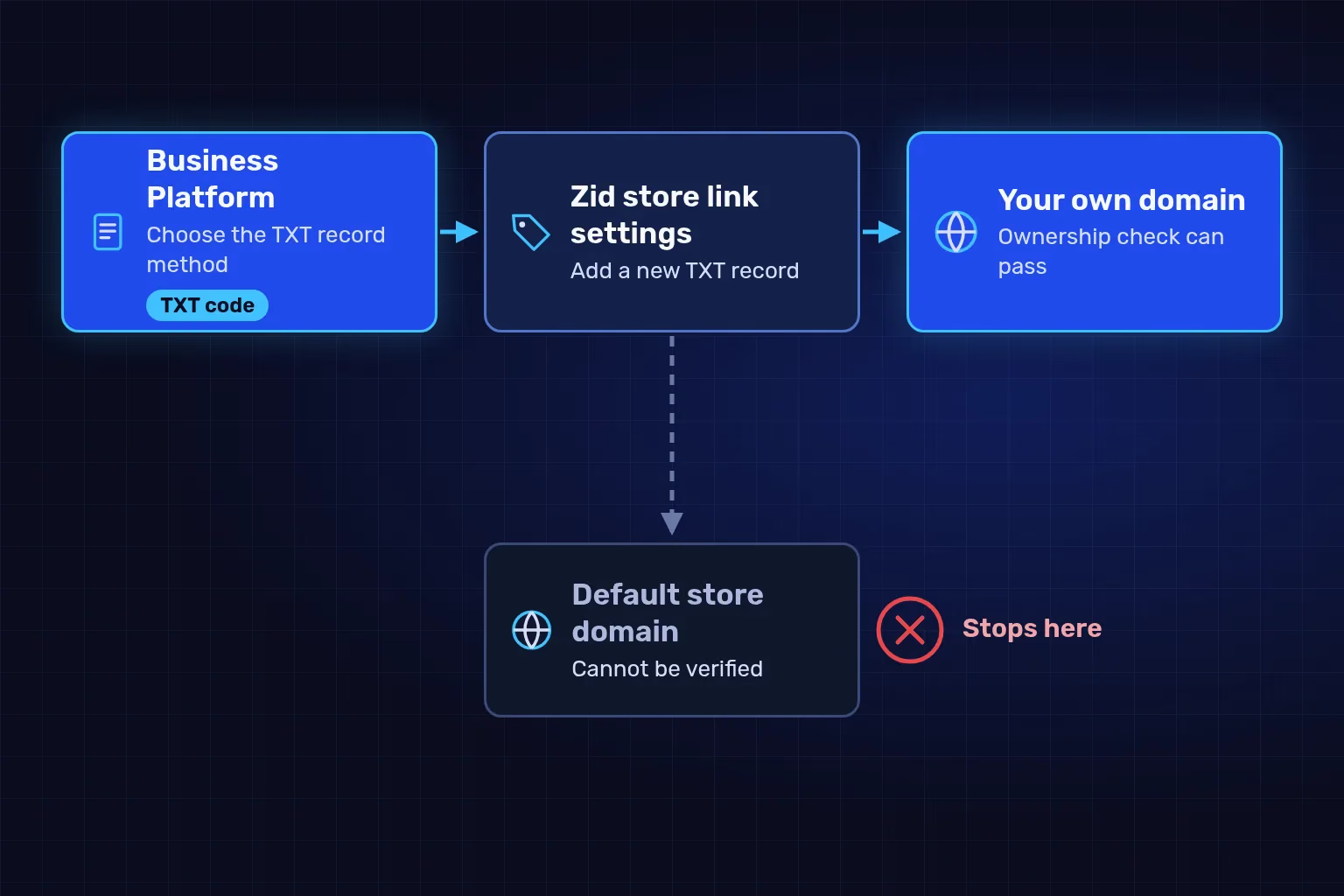
Verification runs through a TXT record you add in Zid's domain settings. The drawing is illustrative; the final review and approval rest with the authority.
Place one real order for every payment method and every carrier before the first customer does, then check the tax settings and what appears at the foot of the store.
- Orders. Pay by card, by instalments if enabled, and try cash on delivery in an enabled city and one that is not. Cancel one order, refund another and read the customer's messages each time.
- Waybill. Move an order to "ready" and confirm the waybill shows the right weight and address.
- Tax. In tax settings, decide whether your prices include VAT, whether VAT applies to shipping, and how it appears to customers. Zid also offers a free connection to ZATCA's Fatoora platform from settings for VAT-registered stores.
- Pages. Check the policies, contact details, registration number and any English pages.
- Handover. Write the order handler's routine on one page: where new orders appear, when to mark them ready, who handles returns.
Before setting prices, add Zid's subscription and payment, shipping and app fees to your first-year online store budget.
You can complete every step yourself. Help pays off when the catalogue is large, options are complicated, the store runs in two languages, or you want the order flow tested before customers find the gaps.
If you would like help with Zid store setup, our plans start from SAR 4,000 for a launch store with up to 50 products in 10 categories, SAR 6,500 for up to 100 products in 15 categories, and SAR 10,000 for up to 250 products and 20 categories, with up to 15 order scenarios tested and a written operations guide. Prices exclude VAT where it applies. We help you prepare the verification application; approval stays with the authority. Zid's subscription, themes, paid apps, and payment and shipping fees are billed by their providers.
Your next step is the table at the top: prepare the documents, domain and policy pages first, because they unlock the rest. When you know your product count and the payment and shipping options you want, tell us about your Zid store and we will reply with a scope and a starting price.
Zid features and requirements in this article were checked against Zid's help centre on 27 October 2026 and may change. TecnoStack prices are the starting prices published on our Zid service page on the same date, in SAR, excluding VAT where it applies; your proposal confirms the final scope and price.